
Microsoft Entra ID (Azure AD)
Alt+S
These instructions will help you setup your own Entra ID Application that allows Privacy Bee to use Entra ID as your Identity Provider (idP)
Creating the SAML Application in Entra ID
1. Login to your Azure Portal and go to Microsoft Entra ID and then select Enterprise Applications under Manage.

2. Click on New Application and then select Create your own application. It will ask you to give it a name and make sure “Integrate any other application you don’t find in the gallery” is selected and click Create.

3. When that finishes loading you will want to select Set up single sign on and then select the option for SAML.
4. Open up the Privacy Bee application and navigate to your Business Settings – Authentication page and you will want to click the button that says Download Metadata. You can save this XML to your computer and inside of Entra ID application you can click the button that says Upload metadata file. Select this file and upload it.

5. Alternatively you can click the Edit button and manually enter the Entity ID and ACS URL from Privacy Bee.

6. Once filled out it should look like this and you can click Save.
Note: Logout URL is not required if you are manually entering the data.

7. Look for the Certificate download option and you can download that to your computer. You will open this file in notepad and copy the entire contents. This is your x509 Certificate that we are going to put into Privacy Bee.

8. In the last section you will find the additional options you need to input into Privacy Bee which are the Login URL and the Microsoft Entra Identifier. With these two URLs (Logout URL is not required) and the x509 Certificate we are ready to set up Privacy Bee.

9. Returning to the Authentication page on Privacy Bee you will input the Microsoft Entra Identifier as the Entity ID, the Login URL, and the x509 Certificate you copied from the file you downloaded.

10. Once you have the data input you can toggle Enable SSO SAML on and click Update. You are now ready to test your ability to login via SSO. Make sure you go to Users and Groups and assign the appropriate users and/or groups that should have access to be able to login.

Testing login
You can use the Microsoft Entra ID option to Test which should redirect you directly into the Privacy Bee application. Assuming everything was input correctly you should quickly find yourself logged into Privacy Bee

If you want to test it directly with Privacy Bee make sure you update the Users and groups access first and then you can go to Privacy Bee and input your email to login.

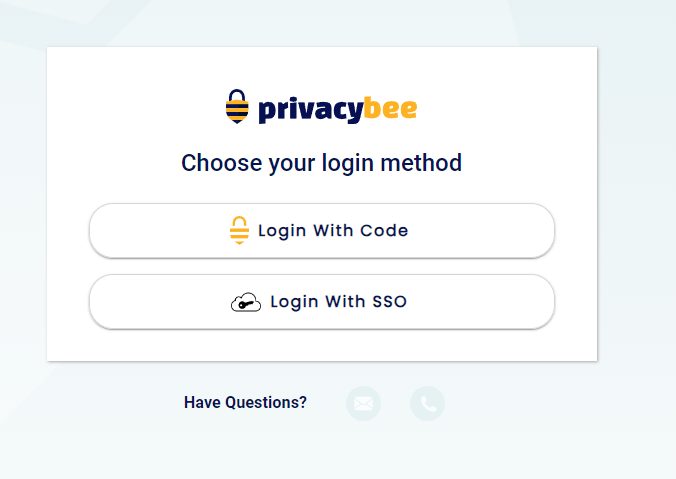
You will be given the option to either Login With Code or Login With SSO. Select Login With SSO and it will send you to Microsoft to authenticate and when finished it will return you to Privacy Bee and you will be logged in.
Once you have confirmed that you can login successfully with SSO you can disable PIN login and force all employees to login through Microsoft Entra ID.
If you continue to have issues please do not hesitate to reach out to your Account Manager who will always be happy to help.
Privacy Bee, LLC. © Copyright 2026. All Rights Reserved.